Did you know that over 40% of WordPress sites are vulnerable to hacking attacks due to poor security practices? If your site isn’t protected, you could be the next target.
WordPress security should be a priority for every site owner. With millions of plugins available, it can be overwhelming to know which ones will truly protect your website from hackers, malware, and other security threats.
Imagine having the peace of mind knowing that your website is secure with the best plugins and practices. The good news is, securing your WordPress site doesn’t have to be complicated or expensive. Learn how to implement the best security tips today.
Keep reading to discover 20 actionable WordPress plugin security tips that will help you safeguard your site, enhance your security posture, and avoid common vulnerabilities.
Why WordPress Website Plugin Security Should Be Your Top Priority
The popularity of WordPress is a double-edged sword. While it powers a massive chunk of the internet, its ubiquity makes it a prime target for cybercriminals. Attackers use automated bots to scour the web for known vulnerabilities, often finding entry points through outdated software or weak passwords.
Plugins are at the center of this security conversation. They are essential for extending the functionality of your site – adding everything from contact forms to SEO tools – but they also introduce risk. Every plugin you install is a potential doorway for a hacker if that code isn’t secure or maintained. Balancing functionality with security is the key to a healthy WordPress environment.
Tip #1: Choose Reliable Security Plugins
Not all plugins are created equal. When it comes to the safety of your digital assets, you need tools that have a proven track record. Relying on obscure or unverified security plugins can sometimes do more harm than good, offering a false sense of security while leaving actual gaps wide open.
Industry leaders like Wordfence, Sucuri, and iThemes Security have built their reputations on consistent performance and rapid response to new threats. These comprehensive suites often bundle firewall protection, malware scanning, and login security into one package. Choosing the right plugin serves as the foundation of your defense strategy, automating many of the complex tasks required to keep bad actors at bay.
Tip #2: Regularly Update Your WordPress Plugins
One of the most common ways hackers gain access to a WordPress site is through outdated plugins. When a developer discovers a security hole in their software, they release a patch in the form of an update. If you don’t install that update, you are leaving that specific vulnerability exposed to anyone looking for it.
It is crucial to get into the habit of checking for updates weekly, if not daily. Many site owners fear that updating might break their site, but the risk of being hacked far outweighs the risk of a minor compatibility issue. Modern WordPress versions even allow for auto-updates, ensuring you are patched the moment a fix is released.
Tip #3: Install a Web Application Firewall (WAF)
Think of a Web Application Firewall (WAF) as a security guard standing at the entrance of your website. It inspects incoming traffic and blocks malicious requests before they even reach your WordPress installation. This is your first line of defense against common threats like Distributed Denial of Service (DDoS) attacks, SQL injections, and cross-site scripting (XSS).
There are two main types of WAFs: network-based (cloud) and host-based (plugin). Cloud-based WAFs, like those offered by Cloudflare or Sucuri, generally offer superior protection because they filter traffic on their servers before it hits yours, reducing the load on your hosting resources.
Tip #4: Use Two-Factor Authentication (2FA)
Passwords, no matter how complex, can be stolen or guessed. Two-Factor Authentication (2FA) adds a critical second layer of security. With 2FA enabled, a user must provide a password and a second form of verification – usually a temporary code sent to a mobile device – to log in.
This simple step renders stolen passwords useless. Even if a hacker manages to crack your admin password, they cannot access the dashboard without your physical device. Plugins like Google Authenticator or features within Wordfence make implementing this highly effective security measure straightforward.
Tip #5: Secure Your WordPress Login Page
The default WordPress login page (wp-login.php or wp-admin) is a known entity to every hacker on the planet. Leaving it unprotected invites brute force attacks, where bots try thousands of username and password combinations per minute to force their way in.
You can harden this entry point by limiting the number of failed login attempts allowed from a single IP address. Plugins like Limit Login Attempts Reloaded or Login LockDown are excellent for this. Additionally, consider changing the default URL of your login page to something unique, making it harder for automated bots to find the door in the first place.
Tip #6: Use Strong Passwords and Change Them Regularly
It sounds basic, but weak passwords remain a leading cause of security breaches. Using “Admin123” or your birthdate is akin to leaving your house key under the doormat. A strong password should be a complex mix of uppercase and lowercase letters, numbers, and special characters, ideally completely random.
Don’t rely on memory alone; use a password manager to generate and store unique credentials for every user on your site. furthermore, enforce a policy where passwords are changed periodically – every 90 days is a good standard – to ensure that compromised credentials don’t remain valid indefinitely.
Tip #7: Monitor User Activity and Set Proper User Roles
If you have multiple people working on your site, you need to know who is doing what. Giving every contributor “Administrator” access is a major security risk. If a lower-level account is compromised, you don’t want that account to have the power to delete plugins or change site settings.
Adhere to the principle of least privilege: give users only the access level they need to perform their jobs. Editors should be Editors, and Authors should be Authors. Use plugins like WP Activity Log to keep a record of changes made on the site, helping you spot suspicious behavior or identify which user account might have been compromised.
Tip #8: Regular Backups of Your WordPress Site
Security isn’t just about prevention; it’s also about recovery. In the worst-case scenario where your site is hacked or corrupted, a clean backup is your safety net. Without one, you could lose years of content and customer data.
Don’t rely solely on your hosting provider’s backups. Take control by using reliable backup plugins like UpdraftPlus or BackWPup. Configure them to run automatically on a schedule and, most importantly, store the backup files on a remote location like Google Drive, Dropbox, or Amazon S3 – ever on the same server as your website.
Tip #9: Protect Your WordPress Site’s Database Prefix
By default, the WordPress database uses the prefix wp_ for all its tables. Because this is the standard, hackers know exactly what to target when attempting SQL injection attacks.
Changing this prefix to something random (e.g., x7z9_) makes it significantly harder for attackers to guess your table names. While this can be done manually, it is risky for beginners. Fortunately, many security plugins offer a one-click solution to change your database prefix safely.

Tip #10: Implement Malware Scanning and Removal
Malware can hide deep within your file structure, often going unnoticed until it’s too late. It might be siphoning customer data, redirecting visitors to spam sites, or using your server resources to attack others.
Regular scanning is essential for early detection. Security plugins like Wordfence and Sucuri crawl your site’s code to look for known malware signatures and suspicious file changes. If malware is found, these tools often provide removal options or detailed instructions on how to clean the infected files.
Tip #11: Limit Plugin Use to Only What’s Necessary
It is easy to get carried away installing plugins for every cool feature you see. However, every active plugin increases your site’s attack surface. An unused plugin is just code sitting on your server that could potentially become a liability.
Regularly audit your installed plugins. If you aren’t using one, deactivate and delete it. If a plugin hasn’t been updated by its developer in over a year, find a better-maintained alternative. Keeping your ecosystem lean reduces the number of potential entry points for hackers.
Tip #12: Update Your WordPress Themes Regularly
Just like plugins, WordPress themes are software that requires maintenance. Outdated themes can contain vulnerabilities that hackers exploit to gain access to your site. This applies even to themes you have installed but aren’t currently active.
Ensure you are using a theme from a reputable developer who releases regular security patches. If you have a collection of old themes sitting in your dashboard that you never plan to use, delete them. They serve no purpose other than acting as potential security risks.
Tip #13: Utilize Security Plugins for Automated Threat Detection
Manual monitoring is impossible for most site owners. You cannot watch your traffic logs 24/7. This is where automated threat detection shines. Plugins like iThemes Security or Wordfence use real-time data to identify and block threats as they happen.
These tools monitor for patterns of attack, such as rapid-fire 404 errors (scanning for vulnerabilities) or massive spikes in traffic from suspicious IP addresses. By automating this process, you ensure your site is being watched even when you are asleep.
Tip #14: Implement SSL Certificates for Secure Data Transmission
An SSL (Secure Sockets Layer) certificate encrypts the data transferred between your user’s browser and your website server. This is vital for protecting sensitive information like credit card numbers, login credentials, and personal data.
Google also uses HTTPS as a ranking signal, so SSL is necessary for SEO as well as security. Most hosting providers now offer free Let’s Encrypt SSL certificates. Ensure your WordPress settings are configured to force HTTPS on all pages, preventing any unencrypted connections.
Tip #15: Secure Your WordPress Admin Area
The admin dashboard is the command center of your website. Restricting access to this area is paramount. One effective method is to restrict access to the wp-admin directory by IP address, ensuring only your specific location can access the backend.
You can also password-protect the wp-admin directory at the server level, adding another popup password prompt before the WordPress login screen even appears. This might seem like overkill, but it is highly effective against bots.
Tip #16: Install and Configure a Content Delivery Network (CDN)
A Content Delivery Network (CDN) is a network of servers distributed globally. While primarily used to speed up websites by serving content from a location closer to the user, CDNs also offer significant security benefits.
Providers like Cloudflare or StackPath act as a buffer between the internet and your origin server. They can absorb massive amounts of traffic during a DDoS attack, keeping your site online when it would otherwise crash. They also filter out bad bots and scrapers, reducing the strain on your server.
Tip #17: Secure Your WordPress Site’s File Permissions
File permissions tell your server who is allowed to read, write, or execute files on your website. If these are set too loosely (e.g., setting everything to 777), anyone can edit your files and inject malicious code.
Generally, folders should be set to 755 and files to 644. Your wp-config.php file, which contains your database credentials, should be even stricter. Correcting these permissions limits what a hacker can do even if they manage to gain partial access to your server.
Tip #18: Implement Email Security for WordPress
WordPress uses PHP to send emails by default, which is often unreliable and insecure. Spammers can hijack insecure forms to send out thousands of spam emails, ruining your domain’s reputation.
Secure your email functionality by using SMTP (Simple Mail Transfer Protocol). Plugins like WP Mail SMTP allow you to route your emails through secure providers like Gmail, SendGrid, or Mailgun. This ensures your emails are authenticated and actually reach the inbox, while closing a common avenue for spam abuse.
Tip #19: Disable Directory Listings and Prevent Access to Sensitive Files
If a web server doesn’t find an index file (like index.php) in a directory, it might simply list all the files inside that folder. This is called directory browsing, and it lets hackers see your file structure, helping them find vulnerability targets.
You can easily disable this by adding a simple line of code (Options -Indexes) to your .htaccess file. This forces the server to return a “403 Forbidden” error instead of showing your files to prying eyes.
Tip #20: Regularly Audit Your WordPress Site’s Security
Security is not a “set it and forget it” task. The threat landscape changes daily. Regular security audits help you stay ahead of potential issues. This involves checking your logs, reviewing user accounts, testing your backups, and scanning for vulnerabilities.
Services like WPScans or plugins with audit logging features can help streamline this. By scheduling a monthly security review, you can catch small issues – like a plugin that hasn’t been updated in months – before they turn into critical breaches.
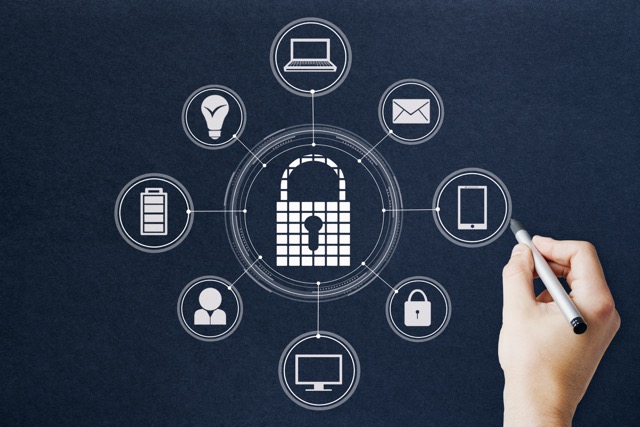
What are the best practices for WordPress Website Plugin Security ?
Best practices for WordPress security include using reliable plugins, updating themes and plugins regularly, using strong passwords, enabling 2FA, and securing your WordPress login page.
How can I protect my WordPress site from hackers?
Use strong passwords, install security plugins, enable a web application firewall (WAF), and regularly scan your site for malware.
What is the best WordPress security plugin?
Popular options for securing your WordPress site include Wordfence, Sucuri Security, and iThemes Security, all of which provide robust protection features.
How can I prevent brute force attacks on my WordPress site?
Limit login attempts, enable two-factor authentication (2FA), and use plugins like Login LockDown to prevent unauthorized login attempts.
Why should I use a web application firewall for WordPress?
A web application firewall (WAF) protects your WordPress site from threats like DDoS attacks, SQL injections, and brute force attacks by filtering malicious traffic.
How often should I update my WordPress plugins?
You should update your WordPress plugins as soon as updates are released to ensure your site remains protected from vulnerabilities.
How can I improve my WordPress site’s login security?
Use plugins to limit login attempts, enable 2FA, and ensure that only authorized users have access to the login page.
What are some common security issues with WordPress plugins?
Outdated plugins, poorly coded plugins, and plugins with security vulnerabilities can expose your WordPress site to attacks. Always use trusted and updated plugins.
How can I back up my WordPress site regularly?
Use plugins like UpdraftPlus or BackWPup to automate backups, ensuring that your site can be restored in case of a security breach.
What should I do if my WordPress site is hacked?
Immediately contact your hosting provider, restore from a backup, update all passwords, and scan your site for malware. Consider hiring a security professional for further investigation.
Ready to Secure Your WordPress Site?
Now that you know the top 20 security tips for WordPress plugins, it’s time to take action. Ignoring security is a gamble with high stakes – your revenue, reputation, and user trust are on the line. By implementing these practices, you can significantly reduce your site’s risk of hacking and malware.
Get Shielded Agency – We are the best WordPress Security Service provider, ready to help secure your WordPress website with tailored, cost-effective solutions. Contact us today!